Available wired connection methods depend on your device combination. Use the guides below to set up USB Direct Connection or USB tethering.
View supported devices and featuresOn Mac + Android, connect a data-capable USB cable to use Tab Display without Wi-Fi pairing or a connection code.
Tested with the following cable.
Cable: USB4.0-certified USB-C cable
Cable quality and specification can affect connection speed and stability. Lower-quality cables may cause an unstable connection or fail to be recognized at all — the cable above is just what we verified, not the only one that will work.
Select USB Direct Connection
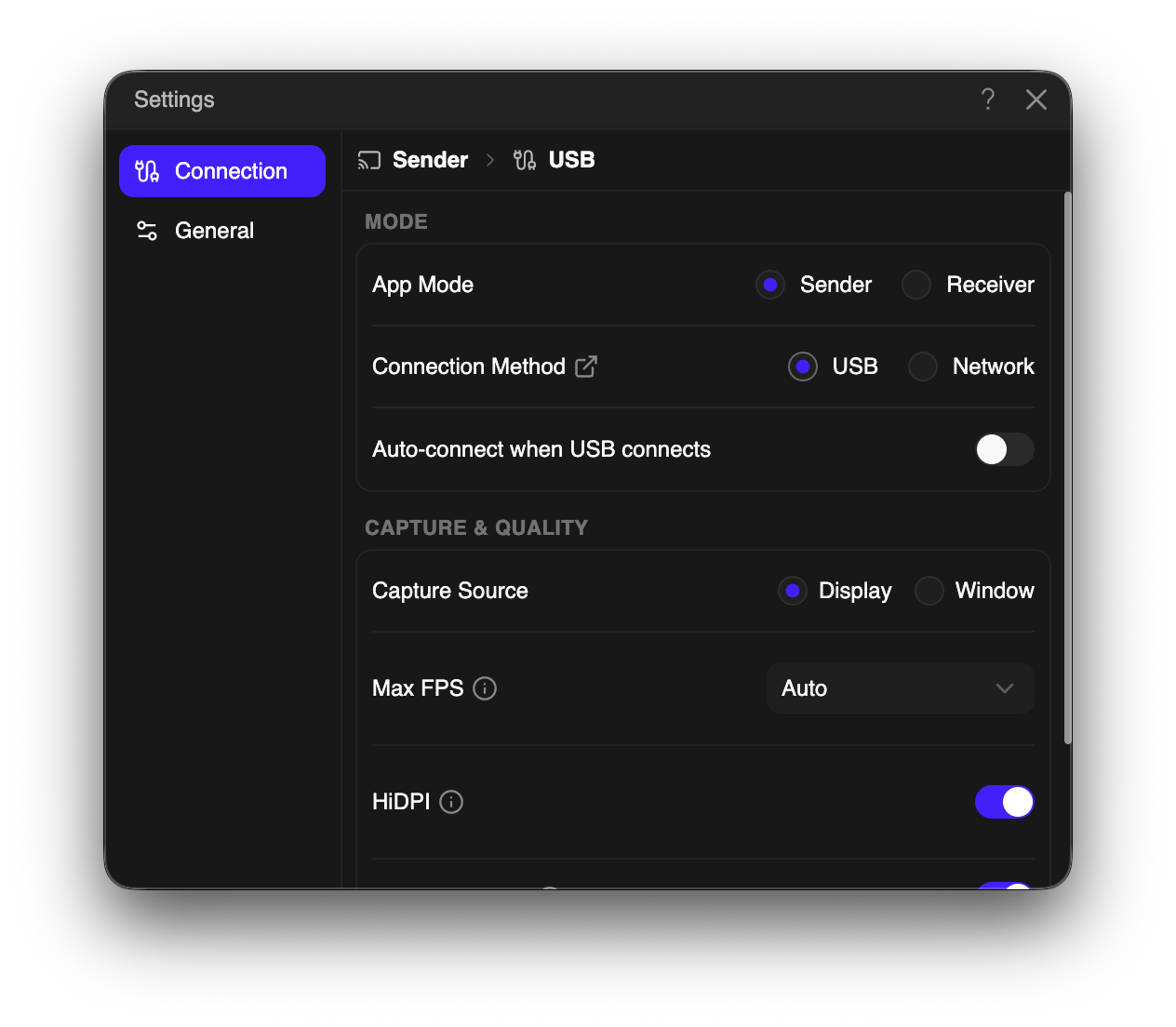
Connect with a USB cable
Allow the connection on Android
Connection Complete
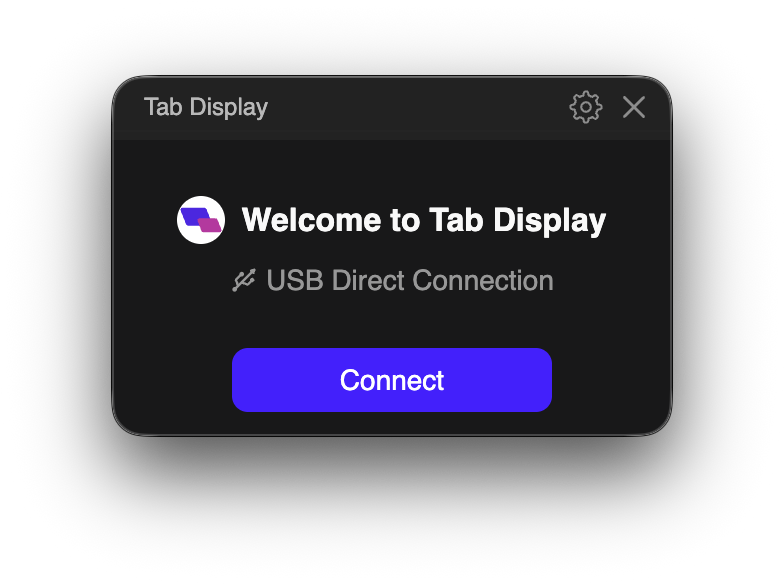
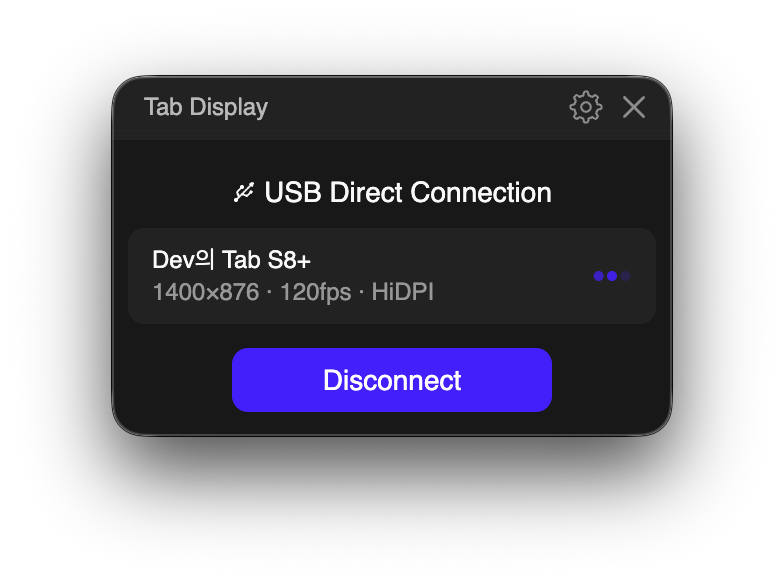
If the connection fails or the screen is black, check that both apps are running, USB is selected, and Settings is closed. Reconnect the cable, then click Connect if auto-connect is off.
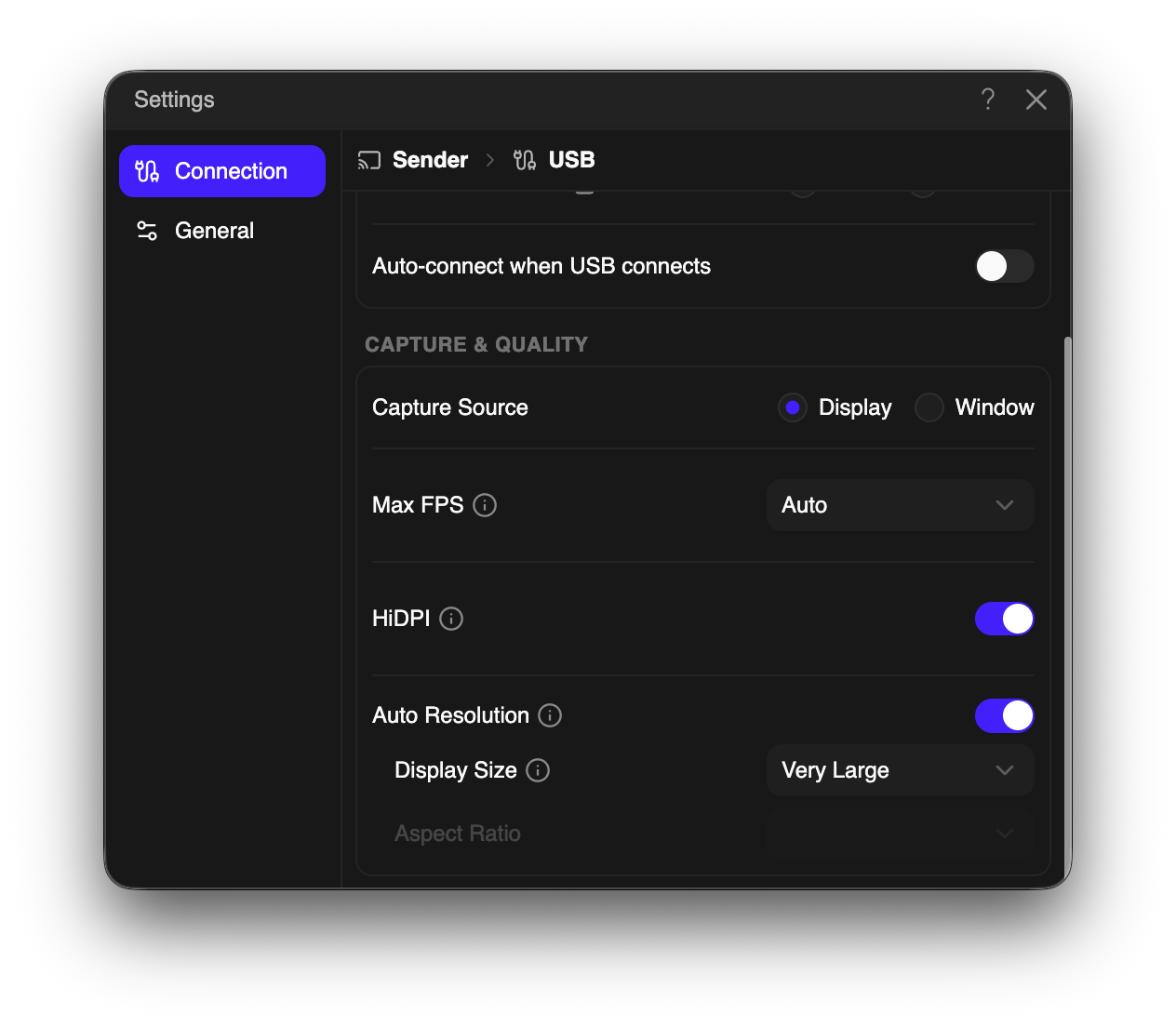
Unsupported Display Setting: the selected resolution or Max FPS may exceed the transmission limit of your setup. Lower the resolution or Max FPS in Settings and try again. The app does not lower your settings automatically.
Why do I see “Unsupported Display Setting”?