Tab Display needs Screen Recording permission on Mac to send the screen. If permission has not been granted, the following message may appear.
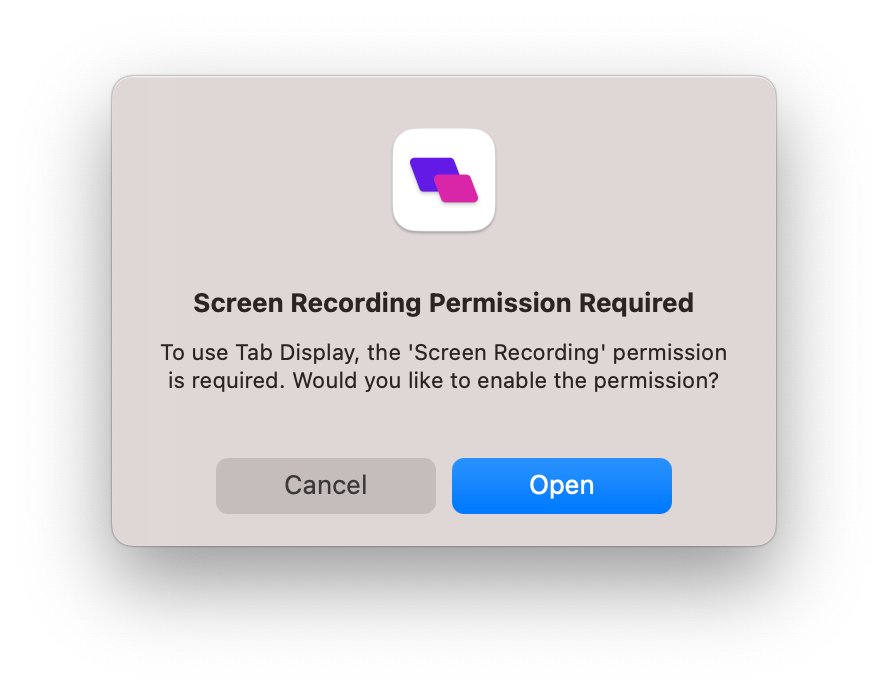
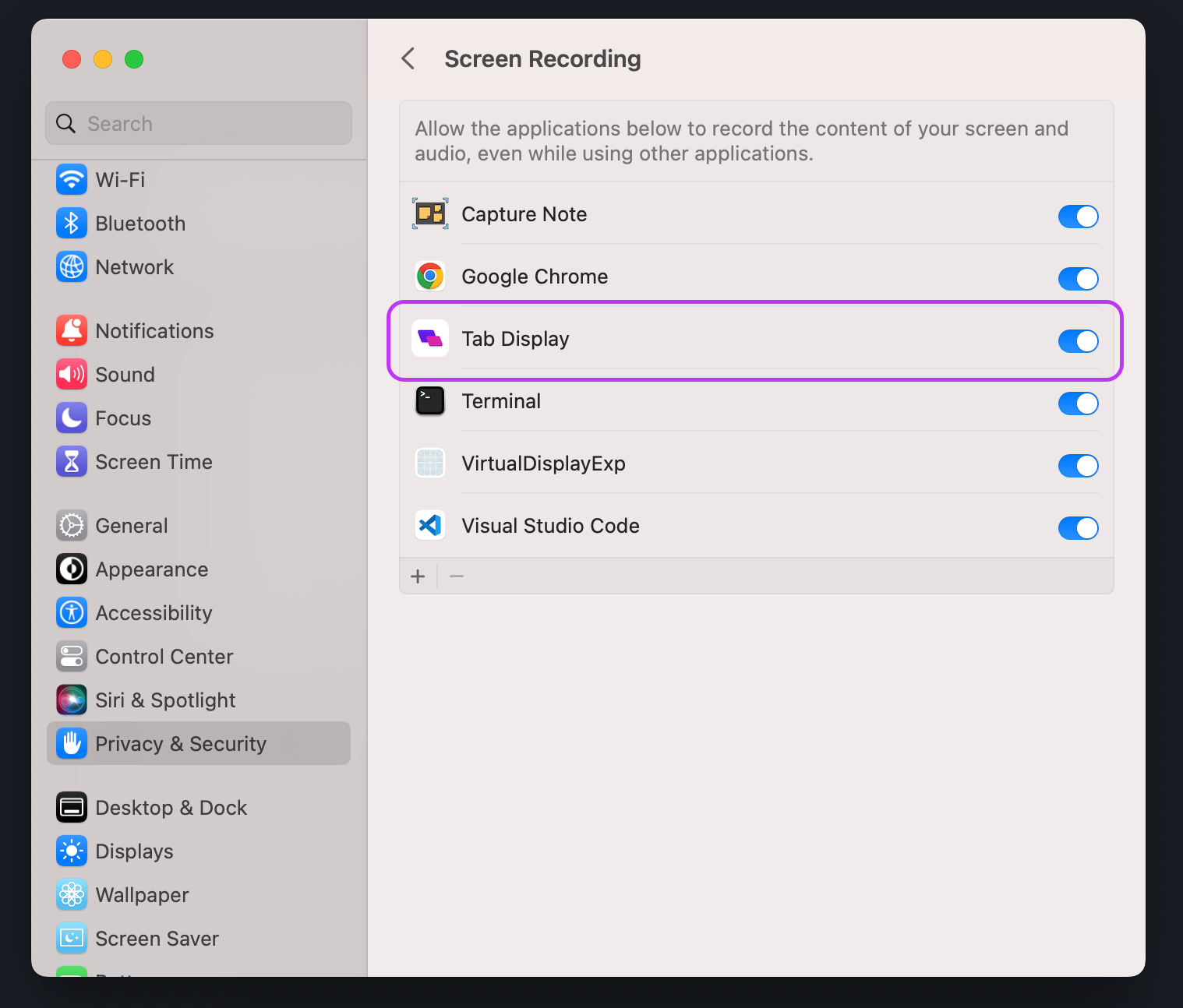
If you click Open, System Settings will open. Go to Privacy & Security → Screen & System Audio Recording, find Tab Display, and enable it.
Use Wi-Fi or a supported USB tethering network. Mac + Android USB Direct Connection has its own steps below.
On Mac + Android, connect a data-capable USB cable to use Tab Display without Wi-Fi pairing or a connection code.
See how to use USB Direct Connection
Connect both devices to the same local network. If using supported USB tethering, enable it on the tablet first.
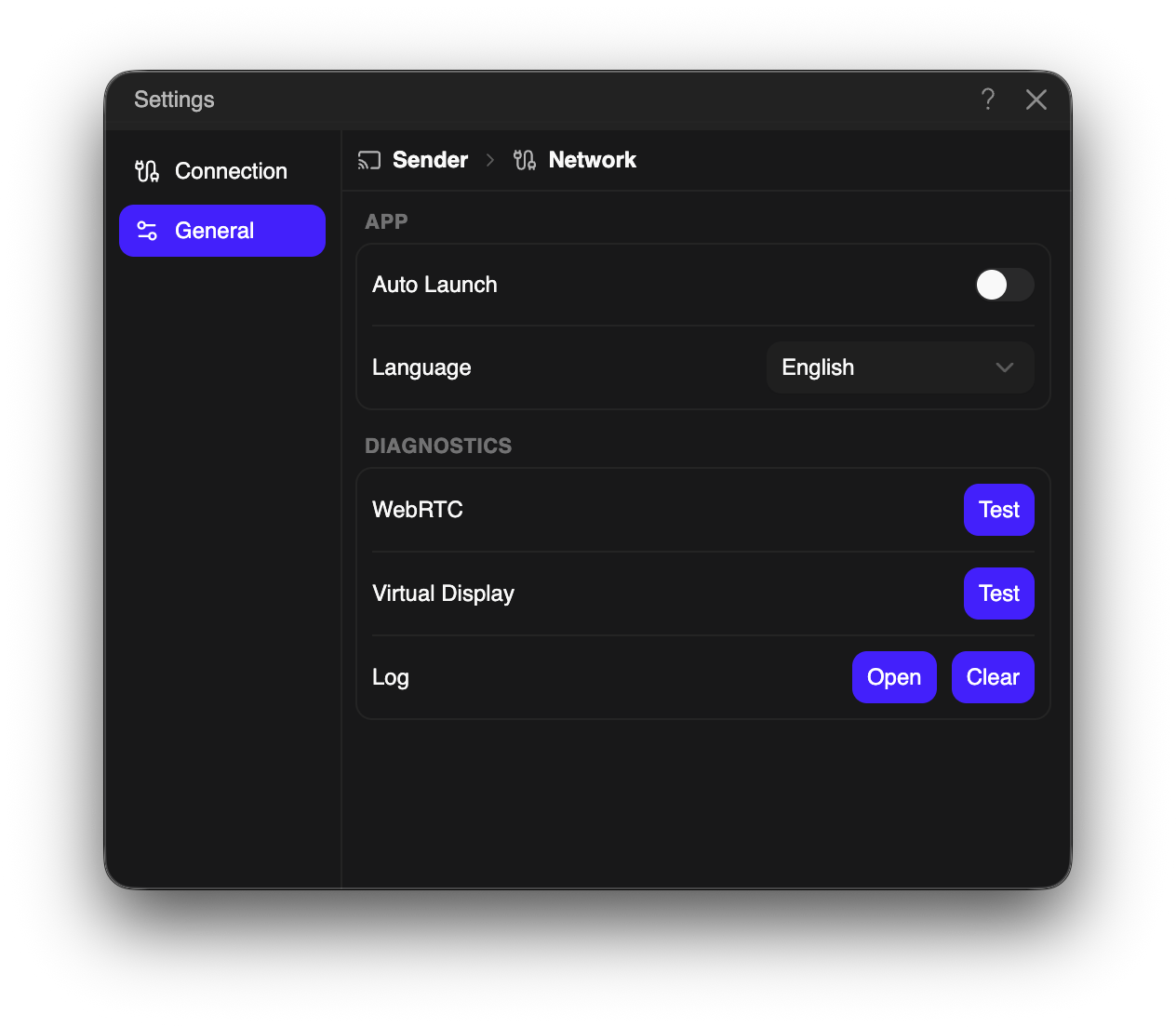
On the sending computer, open Settings → Connection and select Network. Choose the interface on the same network as the tablet, or the tethered interface when using USB tethering.
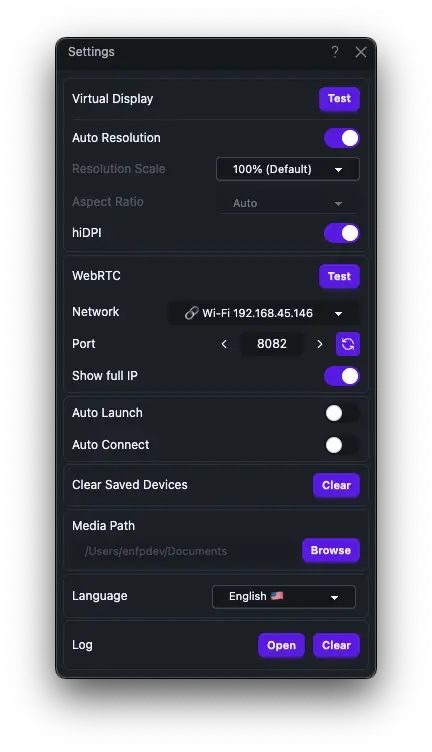
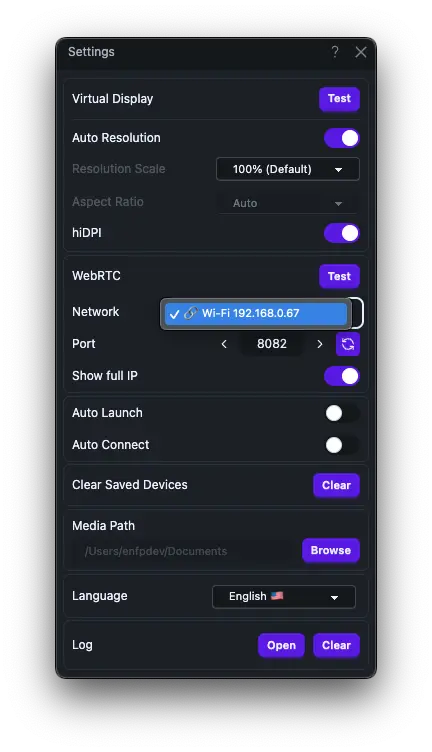
Close Settings and click Connect on the computer. A connection code will appear.
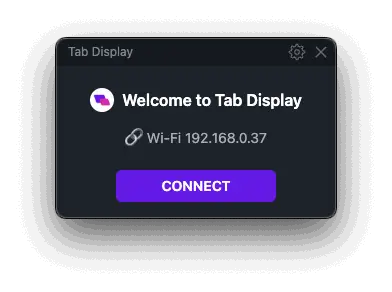
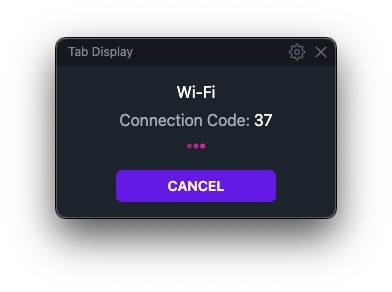
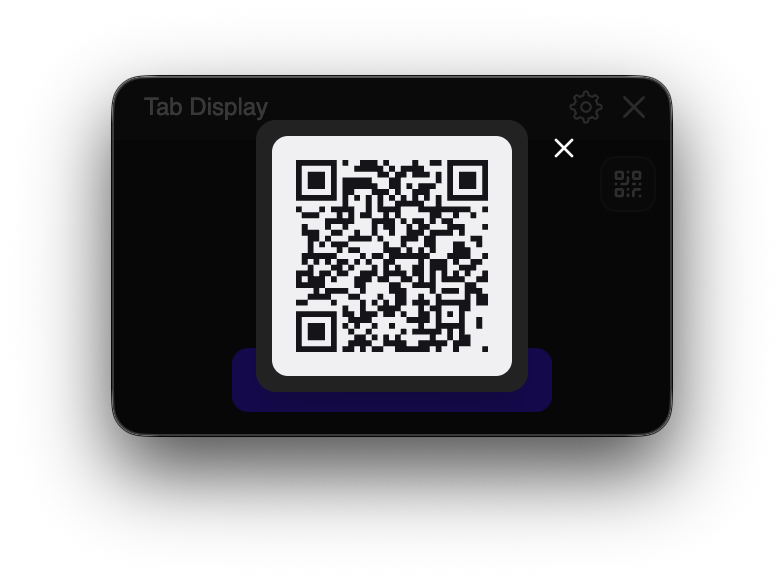
On the Mac sender, click Connect, then the QR button next to the connection code. In the tablet app, tap the QR scan button and scan the code. Allow camera access when prompted. Both devices must be on the same accessible local network.
On Windows, enter the connection code manually. Manual entry is also available on Mac.
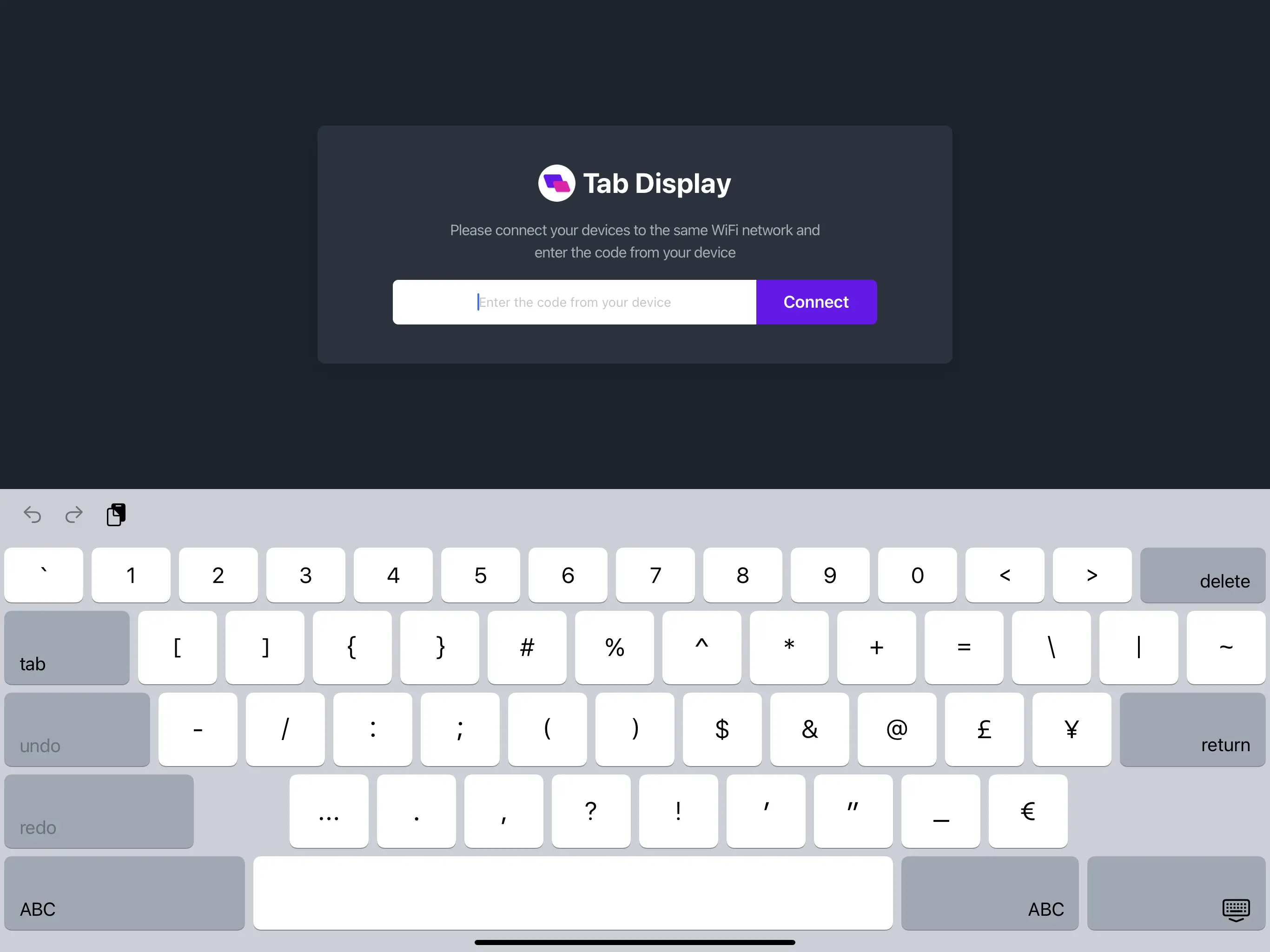
To connect without QR, choose the display or video player mode on your tablet, enter the connection code, and select Connect.
If the code does not work, enter the full IP address shown for the selected network in the desktop app, such as 192.168.1.10. Use your own computer's address, and make sure the port matches on both devices.
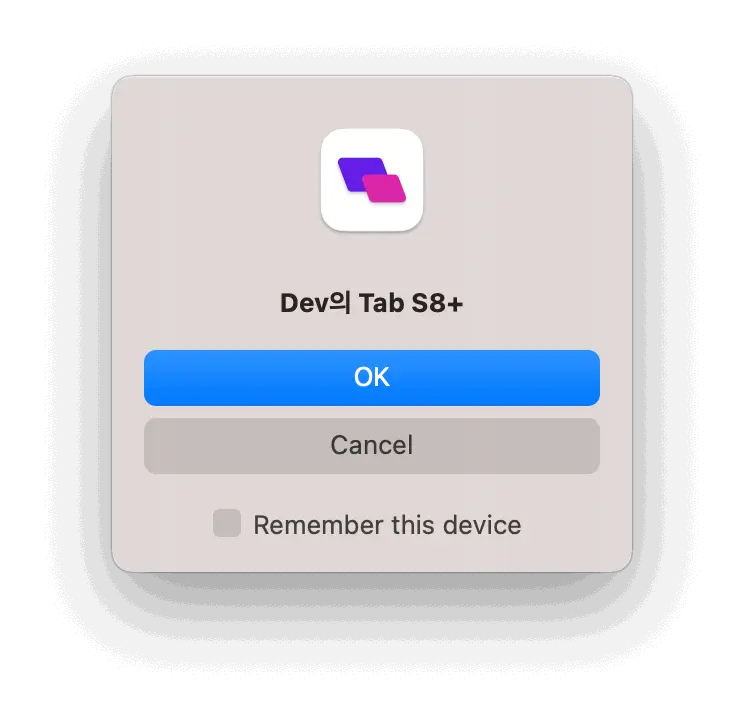
On the computer, check that the connecting device is yours, then select OK. Choose “Remember this device” to skip approval for this device in future connections.
Enjoy using your new external display and remote player.
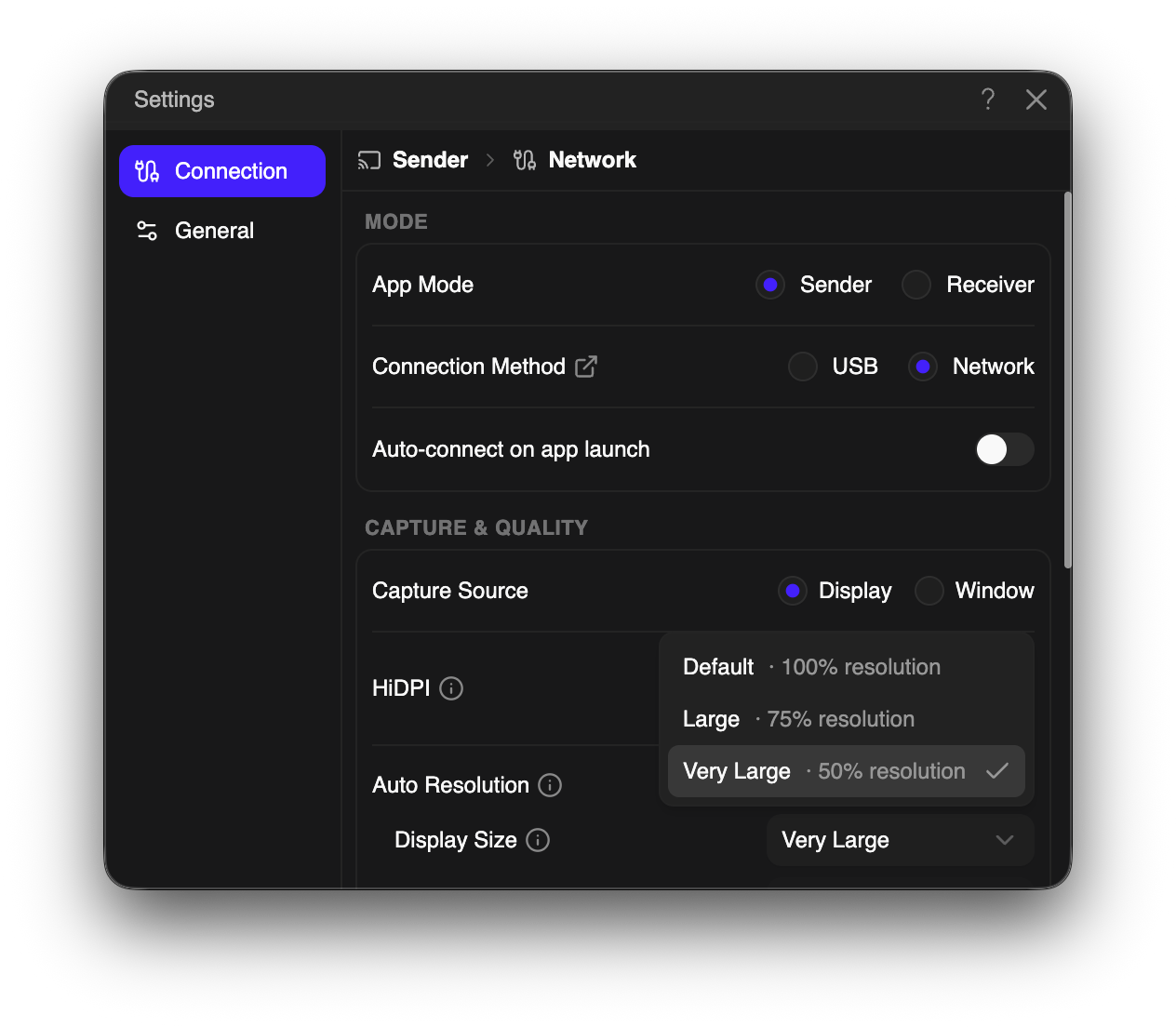
Unsupported Display Setting: the selected resolution or Max FPS may exceed the transmission limit of your setup. Lower the resolution or Max FPS in Settings and try again. The app does not lower your settings automatically.
Why do I see “Unsupported Display Setting”?